
Remote control
The keyboard sometimes stops responding with the remote control: what to do?
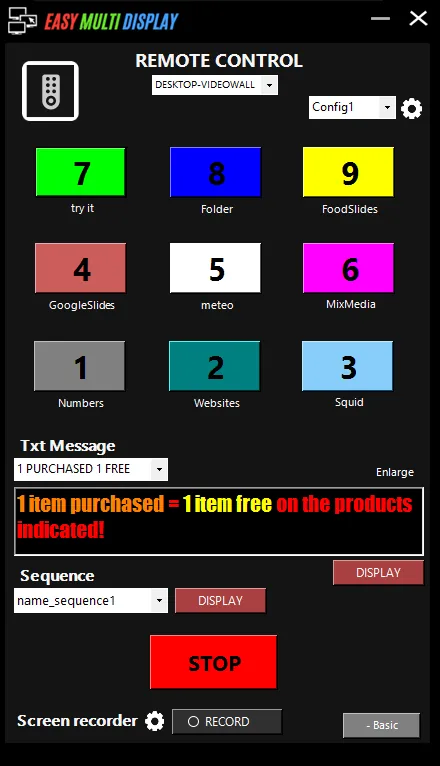
Sometimes controlling the display settings with the keyboard may stop working for a few moments. This behaviour happens when you mix the keyboard and the mouse to operate the Easy Multi Display remote control.

Where does the problem come from?
The freeze appears when you use the keyboard, then click on the screen with the mouse. After that click, the keyboard becomes momentarily inactive for about ten seconds. It is not a fault: you simply need to adopt a stable input method to avoid the inconvenience.
Solution 1: use the keyboard only
The simplest solution is to operate your remote control using the keyboard alone. Use the number keys on the numeric keypad (1, 2, 3, etc.) to select the display you want, without touching the mouse. As long as you do not click with the mouse, the keyboard stays responsive at all times.
Solution 2: use the mouse only
You can also work with the mouse alone: in that case you will never run into this freeze. Simply click on the numbers on the screen and the display changes according to the number you clicked on.
Solution 3: combine keyboard and mouse
Nothing stops you from using both, provided you take one precaution: avoid clicking directly on the display. If the keyboard locks briefly, the mouse remains fully functional and lets you carry on without waiting.
Support
If the difficulty persists, check our other help articles or contact support at support@easymultidisplay.com.