
Drag & Drop
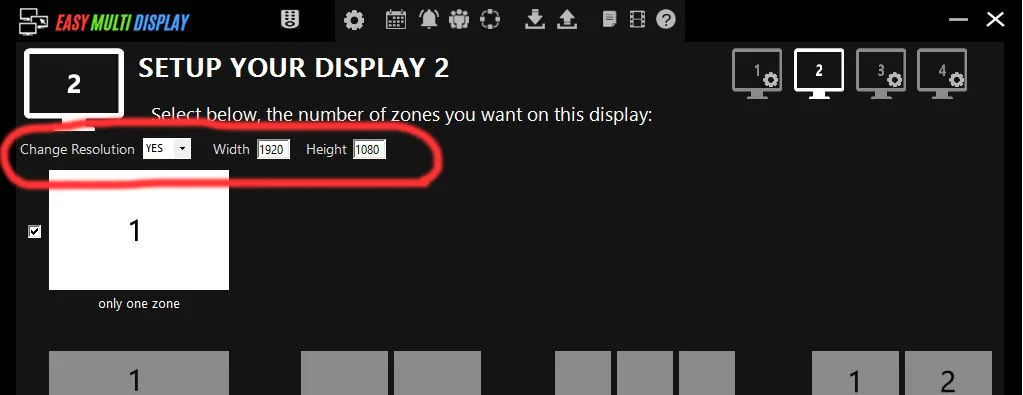
Display problem when you change the resolution between your configurations
If your screens no longer align correctly when you switch configurations, the problem almost always comes from the resolution or the positioning of the screens in Windows. Here is how to position your screens properly for a stable and reliable display with Easy Multi Display.

Access the Windows display settings
To open the settings for your screens, right-click on the desktop and choose “Display settings”.
To move your screens, select them with a left click, then hold the left click down to position them correctly in relation to one another.
With the Videowall function enabled (set to “Yes”), you can use up to 18 screens.
Important tips to avoid resolution problems
To keep a consistent display from one configuration to another, follow these essential rules:
- Screen 1 must be your main desktop. Select the first screen and tick the box “Make this my main display”.
- Set the scale and layout (“Scale and Layout”) to 100% for all screens.
- Use the same resolution on all your screens. This is the most important point: a different resolution from one screen to another or from one configuration to another is the main cause of display problems.
- Use the same graphics cards, or at least the same brand. Do not mix an Nvidia card with an AMD card: you would run into difficulties aligning your screens, and the display order could change at every startup.
How to position your screens?
The goal is to reproduce in Windows the actual physical layout of your screens, in the right order and perfectly aligned.
- Videowall on a horizontal line: the screens must follow one another in the right order and be aligned on the same line.
- Videowall on a vertical line: the screens must be stacked in the right order and aligned in the same column.
- Videowall in a square or rectangle: the screens must form a regular grid, in the right order and without offset.
A wrong screen order or a wrong alignment causes display errors. Take the time to check that the on-screen layout matches the physical installation exactly.
Still having difficulties?
If you still have questions or problems with your display or your configuration, check the FAQ, download the user guide or contact customer support at support@easymultidisplay.com. We will be happy to help.